Advanced editors5 min read
Make an AI Short step by step
Write a script, pick a look and a voice, then check every scene before the short is made.
Open AI ShortsAI Shorts turns any script into a short with pictures, a narrator and captions. Setup takes three quick steps: Script, Look and Voice. Then you choose to let TaleTok make it straight away, or to check every scene first.
Step 1: Script
Open AI Shorts in the sidebar.
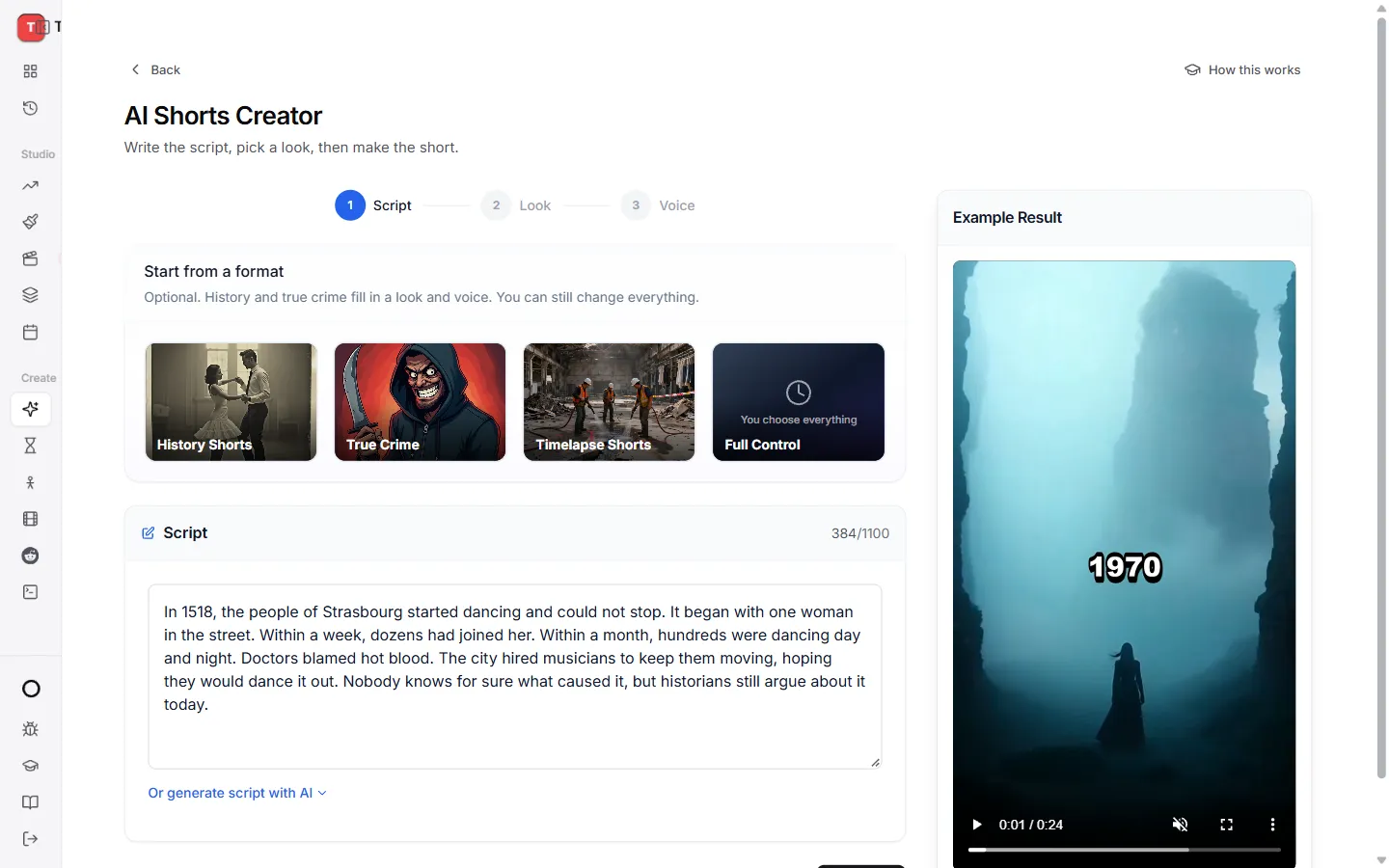
- Pick a starting point under Start from a format if you like, such as History Shorts or True Crime. Or choose Full Control to set everything yourself.
- Paste your script into the Script box.
- No script yet? Turn on Or generate script with AI, add your topic and press Generate Script.
Press Continue.
Step 2: Look
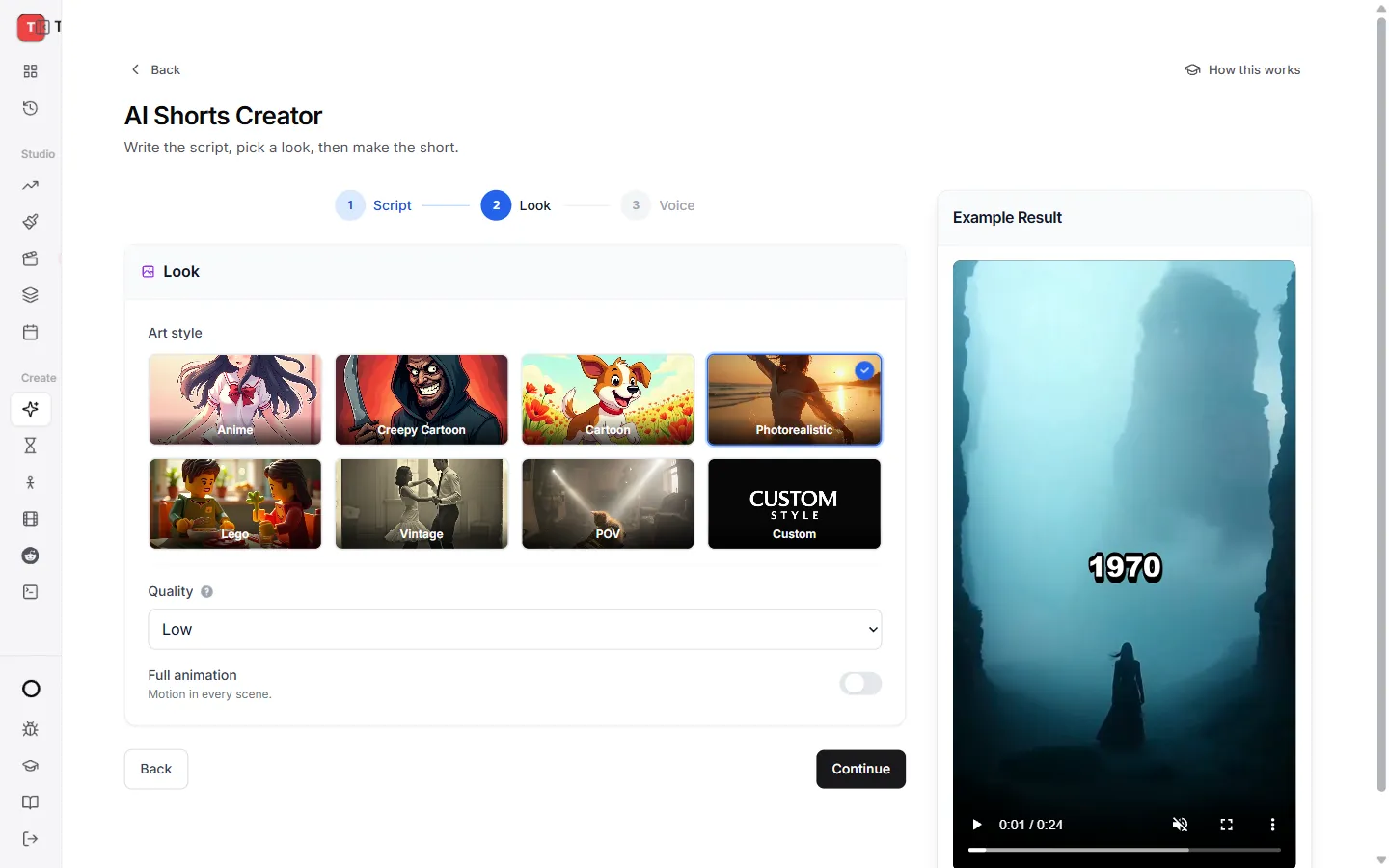
- Art style. Anime, Cartoon, Photorealistic, Lego, Vintage and more. Pick Custom to describe your own.
- Quality. Higher quality looks better and uses more credits.
- Full animation. Turn this on to make every scene move instead of using still pictures. It uses more credits.
Press Continue.
Step 3: Voice
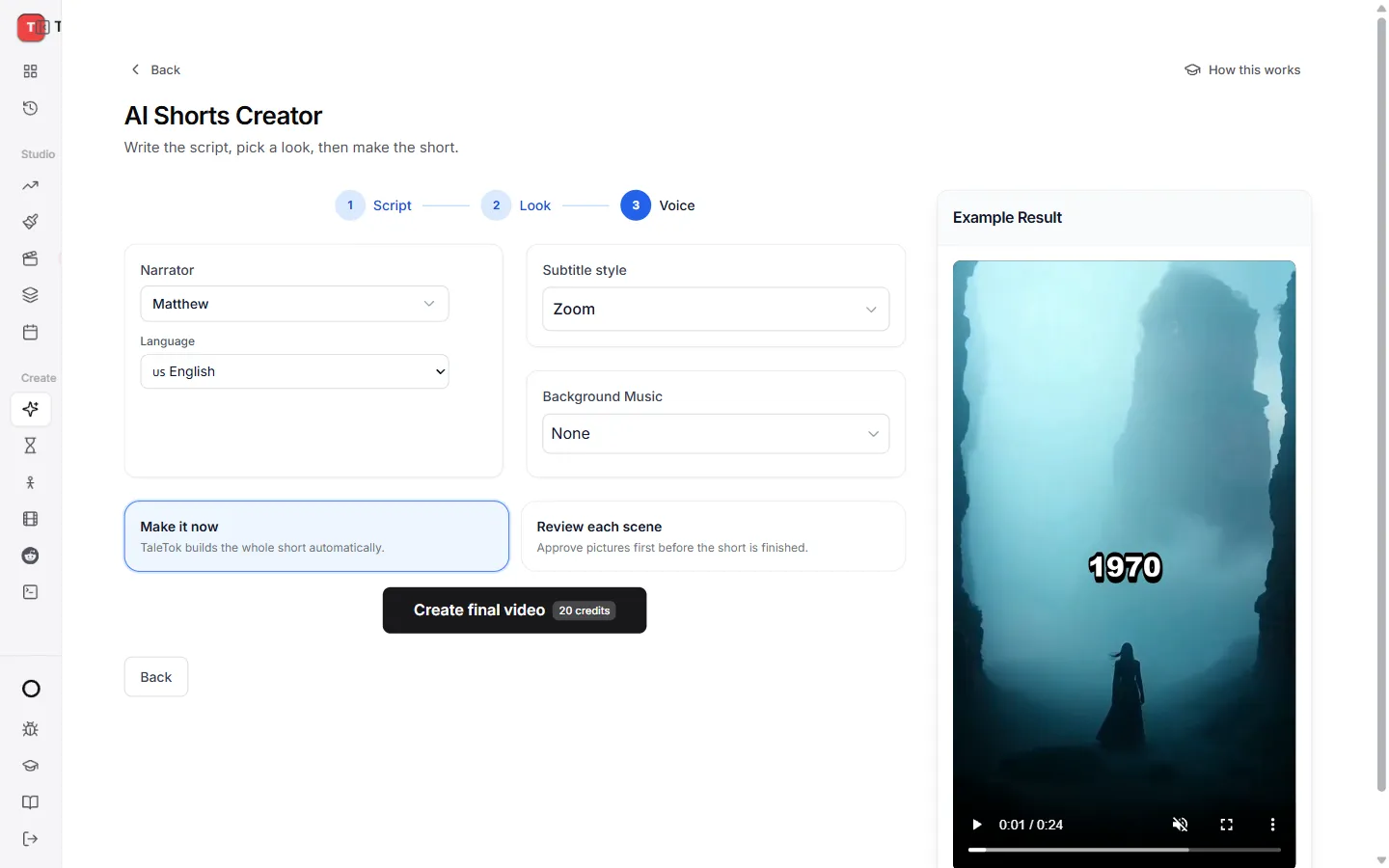
- Narrator. Press it to hear and pick a voice.
- Language. The language of the voice and captions.
- Subtitle style. How the captions look on screen.
- Background Music. Pick a track and set the volume, or choose None.
Choose how to make it
At the bottom you pick one of two ways:
- Make it now. TaleTok builds the whole short for you. Press Create final video and you are done.
- Review each scene. You approve every picture first. Press Generate pictures to start.
Check your scene images
After Generate pictures, you will see one image for every scene of your script.
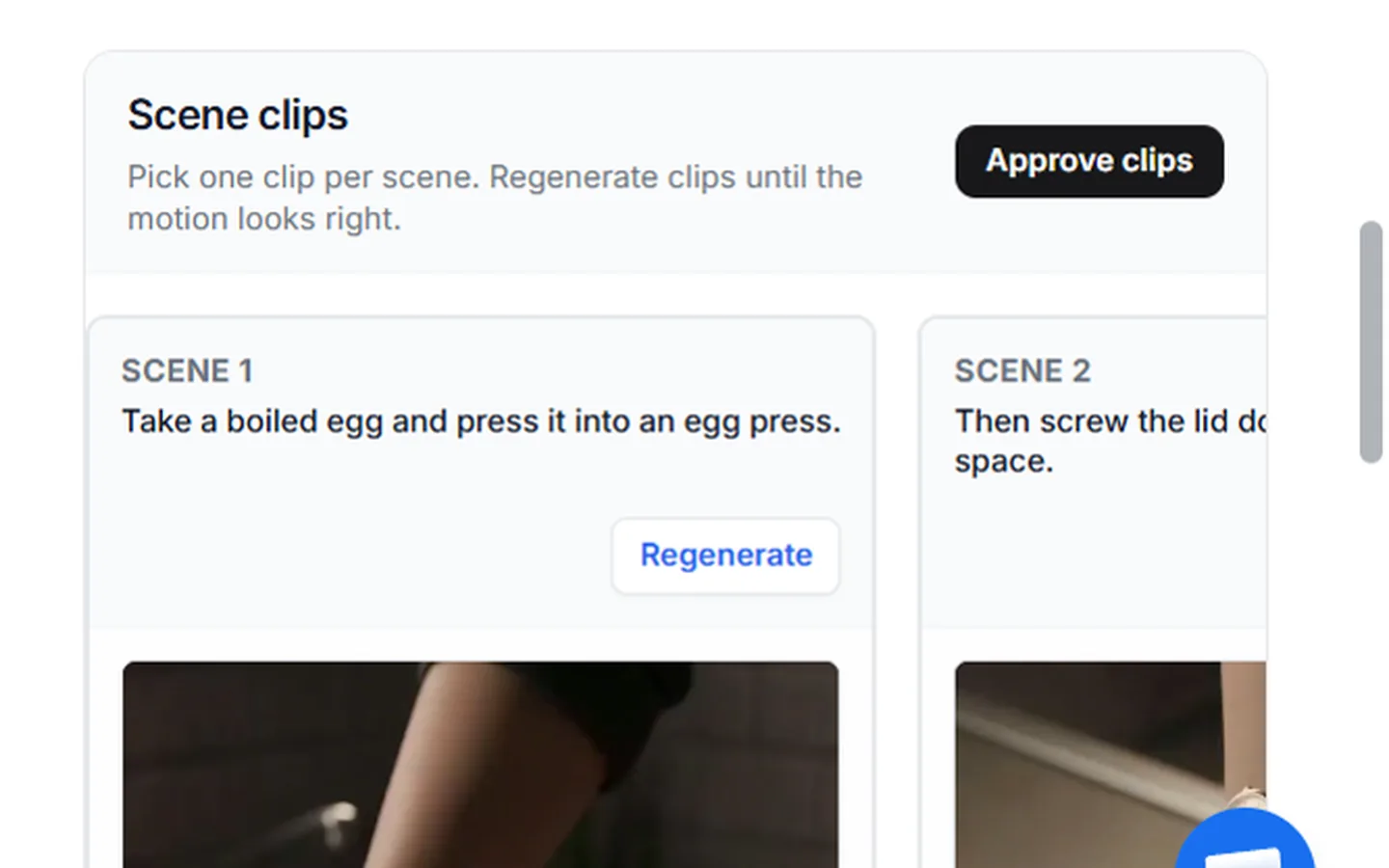
To change one image:
- Press Regenerate on that scene.
- Describe what you want in Edit prompt.
- Press Regenerate. The button shows the credits it will use.
Some scenes offer a few options. Click the one you like best.
When every scene looks right, press Approve images.
Check your clips (full animation only)
If you turned on Full animation, each image now becomes a moving clip. Redo any clip the same way, with Regenerate. Press Approve clips when they all look good, then Create final video.
Your finished short
When it is ready, the video appears under Final Video.
- Press Download to save it.
- Press Schedule post to send it to YouTube.
It is also saved in History in the sidebar.
Start over
Press Start over in the bar above the scenes to throw away this attempt and set everything up again.
Keep learning
6 min read
Make a Zack D Films short step by step
Pick your character, check every frame and clip, then finish a cinematic 3D short.
6 min read
Review and finish your episode
Check the plan, approve every picture and finish a long video that is ready to post.
2 min read
Change one scene without starting over
Fix a single picture or clip in any editor and keep everything else.
2 min read
Connect your YouTube channel
Link your channel once to track growth and post videos straight from TaleTok.