Advanced editors2 min read
Change one scene without starting over
Fix a single picture or clip in any editor and keep everything else.
You never need to throw a whole video away because one scene looks wrong. Every step by step editor lets you redo just that scene.
Redo a picture or a clip
- Find the scene you want to change while you are checking your frames, images or clips.
- Press Regenerate on that scene.
- The Edit prompt window opens with the words used to make it.
- Change the words to describe what you want to see.
- Press Regenerate. The button shows how many credits it will use.
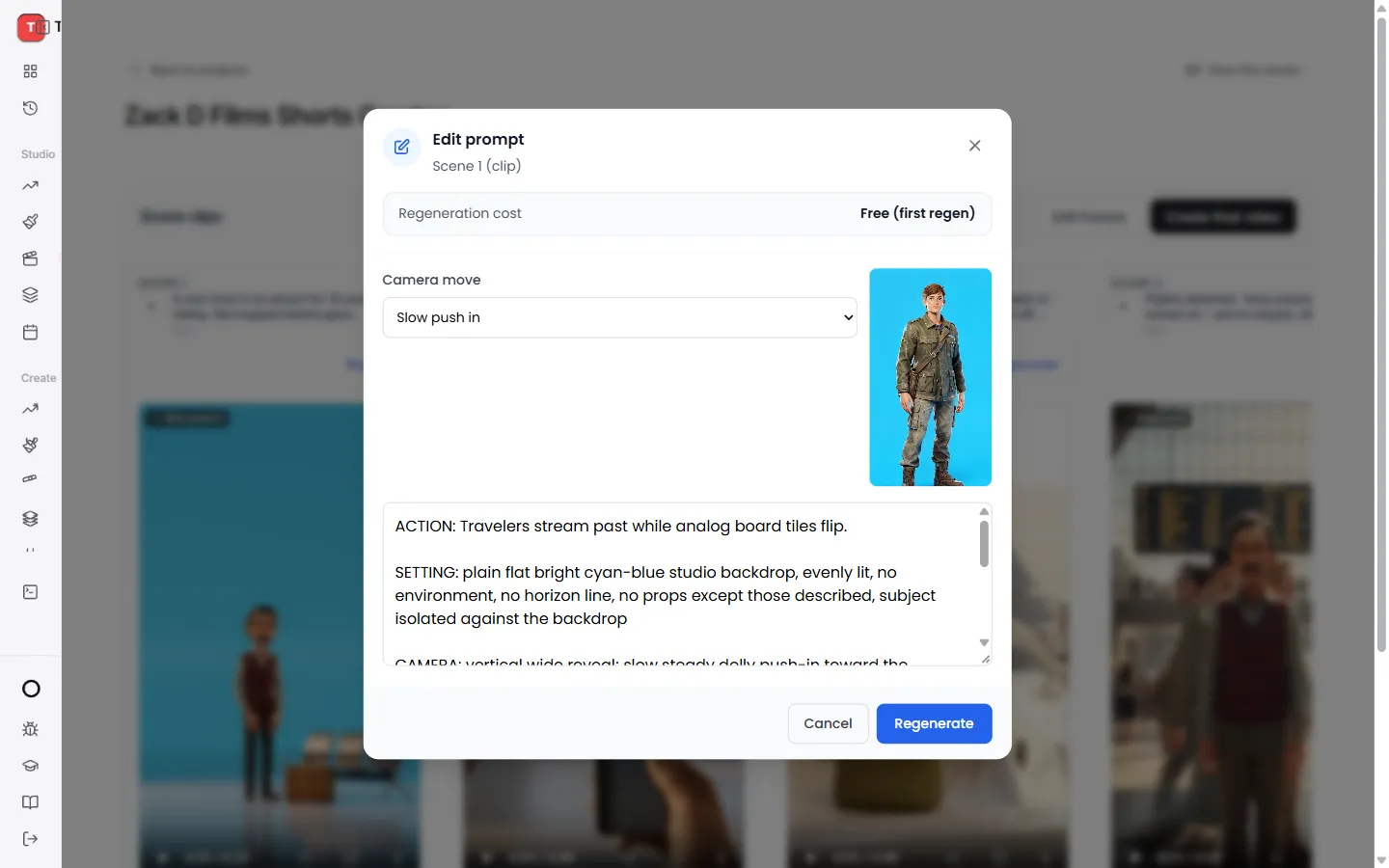
The window also shows the Regeneration cost before you press anything. Your first redo of a scene is often free.
The new version replaces the old one. All your other scenes stay exactly as they were.
Tips for a better result
- Keep it simple. One person, one action, one place works best.
- Say what you see. "A caveman stirring a pot by a fire at night" beats "the cooking part".
- Fix pictures before clips. Redoing a picture costs less than redoing a moving clip.
Where this works
- Zack D Films: on the frames and on the clips.
- AI Shorts: when you pick Review each scene.
- Episodes: click any picture on the storyboard.
Keep learning
6 min read
Make a Zack D Films short step by step
Pick your character, check every frame and clip, then finish a cinematic 3D short.
5 min read
Make an AI Short step by step
Write a script, pick a look and a voice, then check every scene before the short is made.
6 min read
Review and finish your episode
Check the plan, approve every picture and finish a long video that is ready to post.
2 min read
Connect your YouTube channel
Link your channel once to track growth and post videos straight from TaleTok.