Advanced editors6 min read
Review and finish your episode
Check the plan, approve every picture and finish a long video that is ready to post.
Open your episodesThe episode editor walks you through three stages. You see each one at the top of the page:
- Review and edit script. Check the plan for every part of the episode.
- Approve images. Look over every picture before any video is made.
- Review final video. Watch it, finish it and post it.
The top of the page also shows how many credits the episode will use, and how many pictures are ready.
Stage 1: check the plan
TaleTok splits your script into scenes. Read through them and change any words you like.
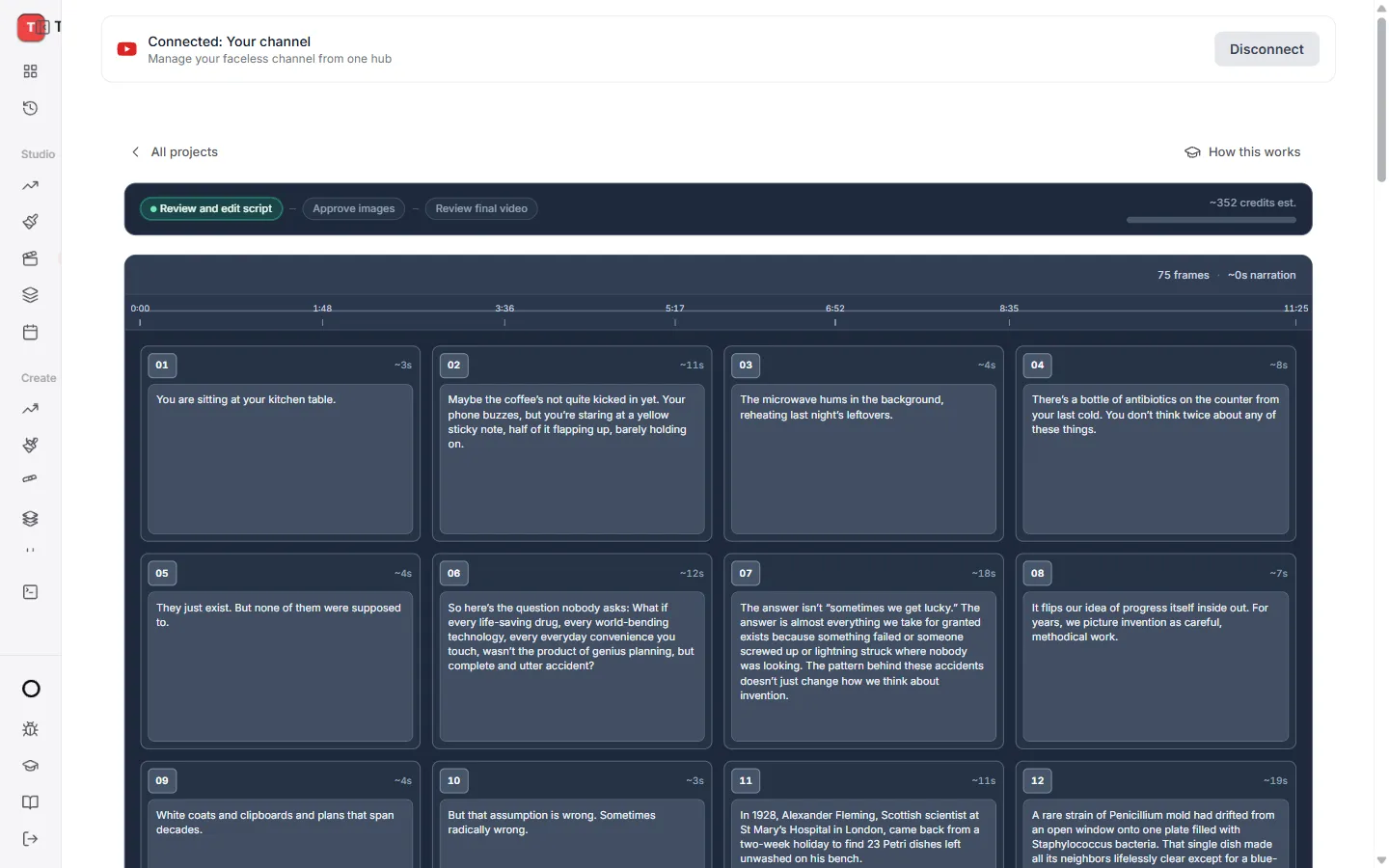
- Not happy with the plan? Press Regenerate script plan.
- Happy? Press Confirm script.
You then see a summary of your Topic, Episode plan, Narrator, Visual style and Main character. Under How should we build your Episode? you choose:
- Review storyboard, then generate video. This is the recommended way. You see every picture first.
- Or generate all at once. TaleTok makes the whole episode without stopping.
Press Start building. The button shows the credits it will use.
Stage 2: approve the pictures
TaleTok draws a picture for every scene. You can watch them appear as they are made.
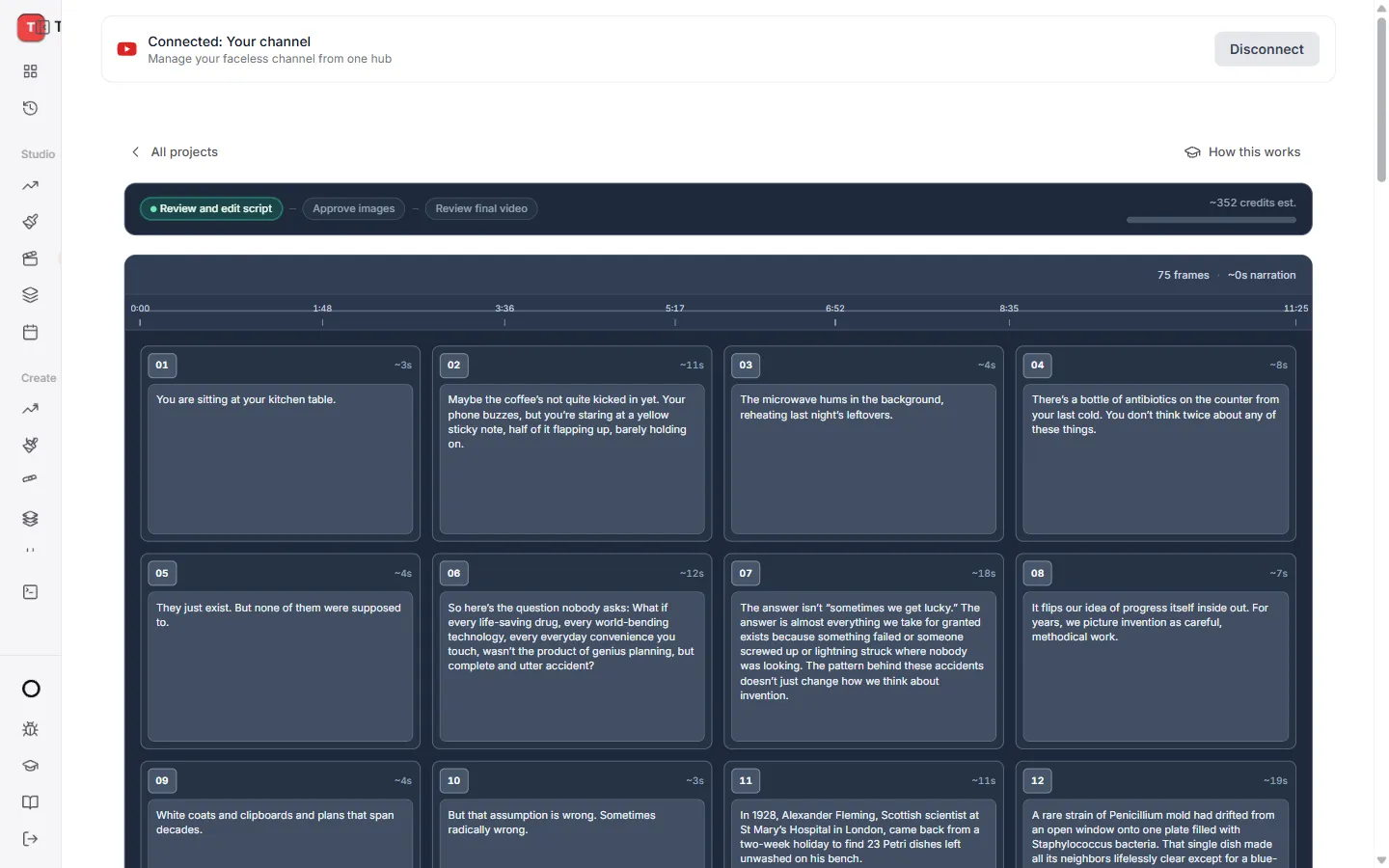
To change a picture:
- Click it.
- Change the words in Edit prompt.
- Press Regenerate. The button shows the credits it will use.
When you are happy with every picture, press Preview video.
Stage 3: finish your episode
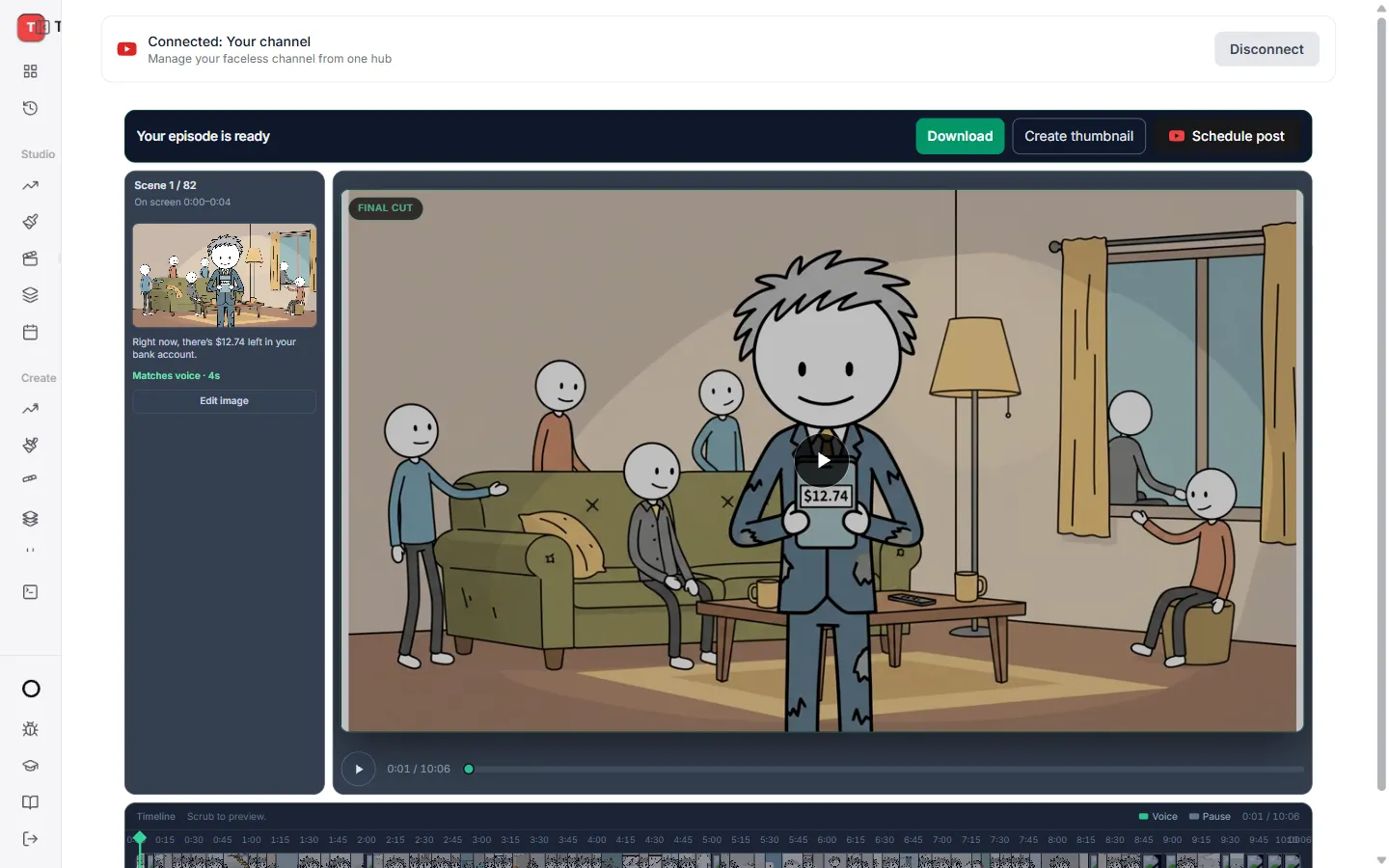
Watch your episode through, then press Finish episode. When it says Your episode is ready you can:
- Download the video.
- Create thumbnail for YouTube.
- Schedule post to send it to your channel.
Need to go back and change a picture? Press Image review.
If something stops
Now and then a build pauses or a few pictures do not finish. You will see a card at the top of the storyboard:
- Build paused. Press Retry to carry on.
- Retry failed frames. Press it to redo only the pictures that did not finish.
Your other pictures are kept. See When something does not look right for more help.
Keep learning
6 min read
Make a Zack D Films short step by step
Pick your character, check every frame and clip, then finish a cinematic 3D short.
5 min read
Make an AI Short step by step
Write a script, pick a look and a voice, then check every scene before the short is made.
2 min read
Change one scene without starting over
Fix a single picture or clip in any editor and keep everything else.
2 min read
Connect your YouTube channel
Link your channel once to track growth and post videos straight from TaleTok.