Advanced editors4 min read
Make a Dark Story, 3D Documentary or explainer
Create everything in one click, change any scene, then render and download your episode.
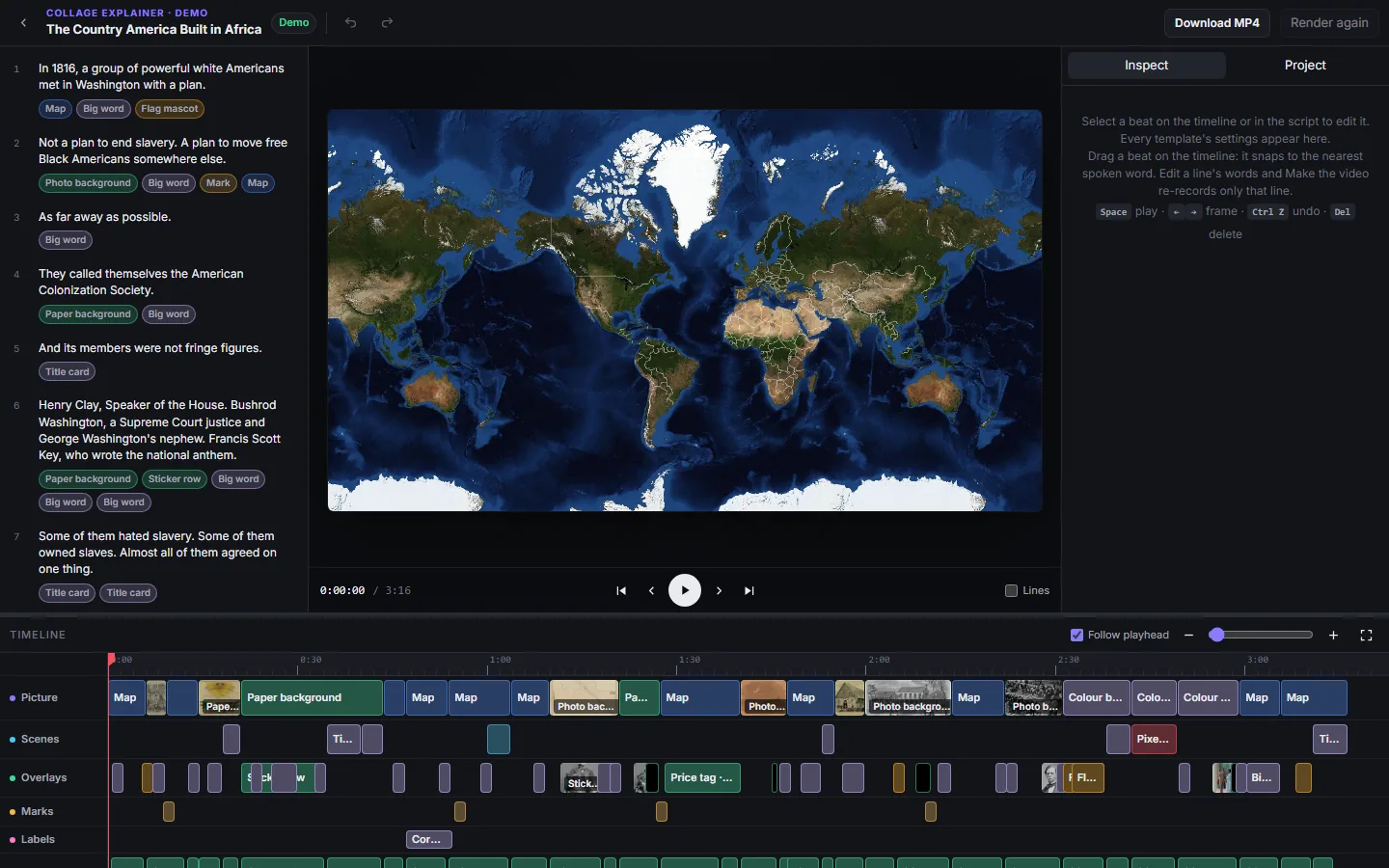
Open your episodesDark Stories, 3D Documentary and the animated explainers (Editorial, Collage, Chalk and Pixel Facts) share one editor. The script is on the left, the video in the middle and the settings for whatever you select on the right. The timeline at the bottom shows every scene, voice line and sound.
Make the video
- Read the script on the left.
- Press Create all missing elements at the top. On the explainers it says Make the video. The button shows how many credits it uses.
- Watch the scenes appear on the timeline. You can leave the page and come back.
- Press Render to put everything together, then Download MP4.
Change one scene
Click a scene on the timeline or in the script. The panel on the right shows everything about it.
- Change the words and only that line is recorded again.
- Change the picture description and redraw just that picture.
- Drag a block on the timeline to change its timing. Timing is free.
Changed your mind? Press Ctrl Z to undo.
The look
The look you picked when you created the episode is used for every scene. Your saved channel looks work here too. See Make every video look on brand.
Quick answers
Why is Render greyed out? Something is still missing or being made. Hover over the button to see what.
Can I render again after a change? Yes. Press Render again. Only the parts you changed cost credits to make.
Keep learning
5 min read
Make a Zack D Films short step by step
Type one idea, pick a look, a voice and your main character, then fine tune any shot in the editor.
5 min read
Make an AI Short step by step
Write a script, pick a look and a voice, then check every scene before the short is made.
6 min read
Review and finish your episode
Check the plan, approve every picture and finish a long video that is ready to post.
2 min read
Change one scene without starting over
Fix a single picture or clip in any editor and keep everything else.